How to edit the website

The editor is a task bar at the bottom of the page.
Click on the pages to edit any of the pages.
You can edit the text, images, links, headings, anything really.
Just hover your mouse on the page to edit anything.

You can edit any of the pages directly by visiting it.
Hover over any page to access its settings. These include the SEO settings, Open graph settings, and site search settings.
Refer to the image below


How to add a blog post
Visit the collection tabs and select "Blog Posts"

Add a new blog
Tap on "New Blog Post"
Add your blog title, body, the summary is not necessary but you need to add the category , the authors names and roles and the blogs topics
When done create and publish your blog and its live on the site.


Add a new team member
Go to collections, click on "Team members"
Tap on "New Team" member to add new members


Edit an existing team member
Go to the team member
Edit any of the details and save

Add a template
Go to collections under "Templates"


Add an available job
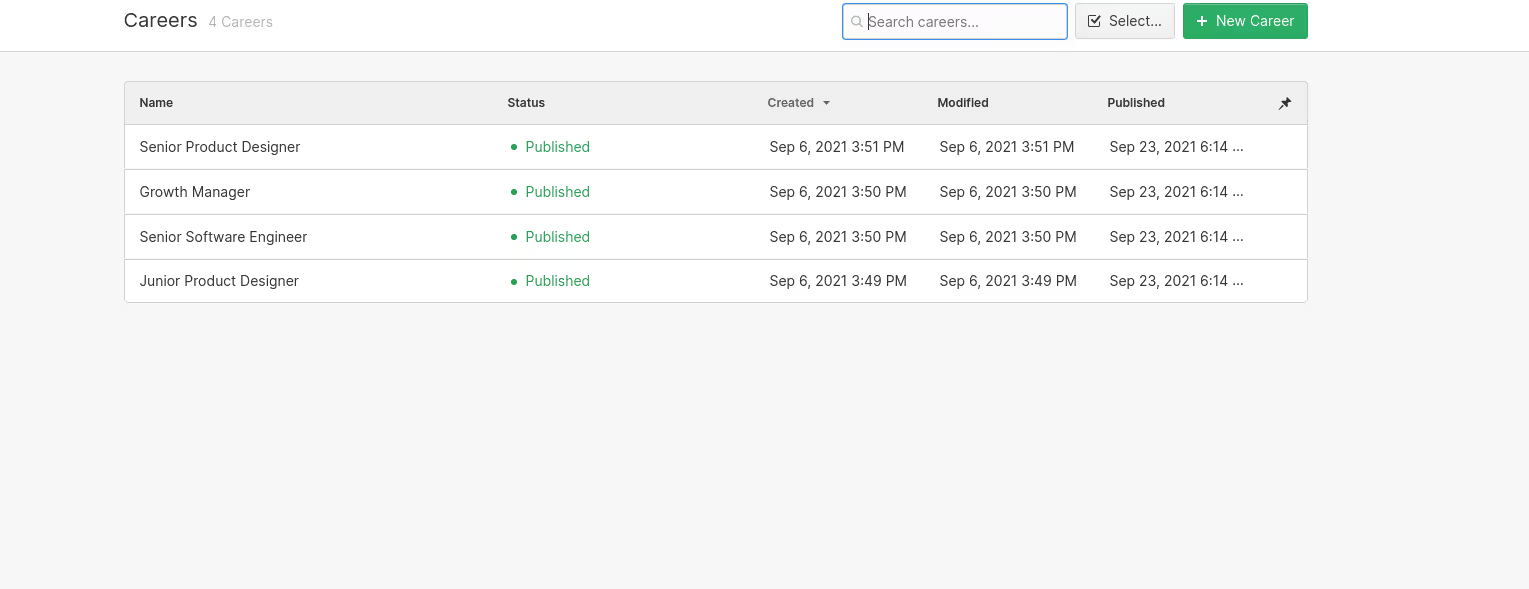
Go to collections under careers
Simply add the Job name, Work preference, jop type and a link to the application